TRANSPORT AND LOADING
Every element on the right rack, in the right truck
Spread the elements of a project over transport racks and trucks, view the load in 3D and let Beamcore check weight, axle load, stability and unloading order. At the loading bay you scan what goes on, with photos and a signature, and a transport document with a QR code travels along. A separate add-on for 149 euro per month.
RACKS AND TRUCKS
Your own equipment, with sizes and axle load
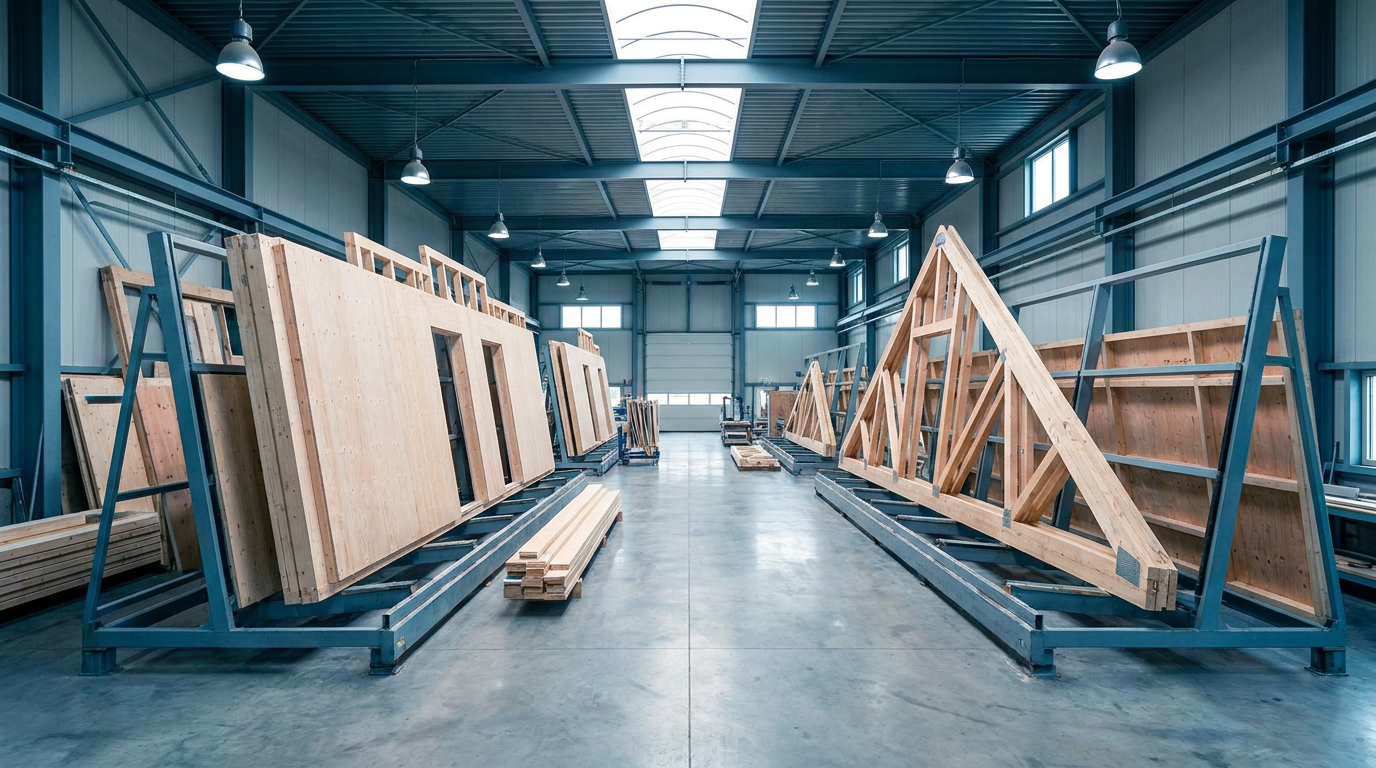
Set up your transport racks and trucks once. A truck gets a load floor, height, payload and two support points for the axle load; a rack its sizes, own weight and the overhang allowed at the front and back. You can load on racks, flat on the load floor, or both.
- A warning when the load sticks out, or is too wide, too high, too heavy or over the axle load
- Racks of 1200 mm side by side when they fit on the load floor together
- Stack elements flat on the load floor, turned a quarter when that fits better
- A maximum transport width up to 3500 mm, with a note that an RDW exemption is needed
- Costs per trip, per rack and per hour for a fair comparison
LOAD PLANNER IN 3D
The truck in front of you, with the real shape of every element
The load planner shows the elements of the project on the left, the truck in 3D in the middle and the transports on the right. Elements have their shape from the IFC model. Drag an element onto a rack, move or rotate it, and see straight away whether it fits. The other transports of the project stand next to it on the ground; one click puts that transport on the truck.
- Views left, right, top and back, and full screen
- Per element the spot, the rack, the side and what it rests on
- The load floor from above with the spot of every rack and the free space
- Stacking list per transport, from bottom to top
- Works on laptop and tablet, touch included

AUTOMATIC LOADING
Three proposals, you choose
With one button Beamcore spreads all open elements over racks and trucks. You always get three variants side by side: Cheapest, Fewest trips and Easiest unloading, with the costs, the number of trips and the unloading handlings. Every variant is checked with the same rules as the planner, and the recommendation never names a variant that cannot be carried out.
- Walls upright, floors and roofs flat, never larger on smaller
- First divide over trucks, then give the transports a date
- Manual changes are kept per variant
- A PDF per variant and a comparison PDF of all three
- A note when an element arrives later than the assembly order because of the layout
SAFE ON THE ROAD
Stability, centre of gravity and load securing
Beamcore calculates the weight per rack, left and right, and the centre of gravity of the whole load, and shows what each element rests on or against. After every unloading step Beamcore checks again whether the rack stays stable. Every transport has a load securing checklist, with tipping risk and the securing force needed per rack.
- Weights and centre of gravity always shown as an estimate
- Status of the safety check: warnings, manual check required or no blocking issues found
- Checklist following EN 12195-1, ticked off by an authorised person
- Beamcore never approves a load itself: the check stays human work
ASSEMBLY, LOADING AND UNLOADING ORDER
What is assembled first comes off the truck first
Every element on a transport has an assembly order, set by hand or suggested from the build order in Montage (Assembly). Beamcore puts the element to be assembled first on each rack last, and shows per element when it goes on and comes off. With Simulate unloading you walk through the unloading step by step, in 2D and 3D.
- A warning when an element to be assembled earlier sits behind a later one
- The number of elements that have to be moved aside temporarily
- Production planning follows the loading order: what goes at the bottom is made first
- Latest finished and latest loading calculated back from the delivery date
LOADING AND DELIVERY
Scan, photo and signature at the loading bay
On the Loading page the crew scans every element that goes onto the truck; a wrong or missing element stands out straight away. Take photos of the loaded truck and have the loading and delivery signed. The transport document goes along as a PDF, with loading list, unloading order and a QR code.
- Transport statuses from draft to delivered
- Photos of the load kept with the transport
- Signature at loading and at delivery
- The QR code on the transport document opens the transport
ASSEMBLIES
An assembly travels as one transport unit
When you join several elements together in the factory, that assembly shows in the load planner as one unit, with the combined sizes, the weight and the real 3D shape of all elements. The separate elements can then no longer go on a rack on their own, and loading is only possible once the assembly is ready for transport.
- An assembly has its own number, such as SE-001
- The elements get the transport of their assembly in production planning
- An assembly on a transport can no longer change unnoticed

LOADING AND UNLOADING SIMULATION
Loading and unloading step by step in 3D
With Simulation you walk through a transport step by step in 3D, with the same positions as in the load planner: first the rack, then the elements in the saved loading order, and when unloading in the unloading order. Every step gets a status. Green only means the placement fits within the known dimensions; the last step, checking the load, stays human work.
- Loading or unloading, previous and next step, play at your own pace
- Views, zoom, look at one rack on its own and full screen
- When unloading you see extra handlings, what has to be moved aside and what goes into temporary storage
- Change the loading order on the same rack as long as the transport is not final
- The lifting route is always shown as not checked by Beamcore
FACTORY VIEW AND LOADING REPORT
One step at a time, with big buttons
In the factory view the loading crew works through the transport step by step. Per element you tick off that it is loaded and that it is checked, and Beamcore records who did it and when. A step with a critical block cannot be ticked off here.
- The actual status per element: planned, ready for loading, loaded, checked and delivered
- An element that is still in production or has a problem cannot be loaded
- Loading report as a PDF with a 3D overview of the load, the loading steps and a check overview
- Browsing and the 3D change nothing; only ticking off records something
LOADING RULES AND SPACERS
Your own stacking rules, approved per company
Record per type of element how it may be loaded and stacked: which rack types, on which support lines, with which loading and unloading method and with which spacers. A rule needs a justification and only applies once approved; every change withdraws that approval. Beamcore fills in no default values. Without an approved rule, a stacked element stays on manual check.
- Spacers proposed on the studs of the element, from the IFC model
- Checked again for support and span after every manual change
- Mark window and door frames and protruding parts per element yourself
- Automatic loading and the three variants take the rules and the spacer thickness into account
- Who created, approved and changed a rule is shown with it
MATERIAL WITH THE TRANSPORT
Protective material and spacers from stock
Protective material and spacers are listed as material with the transport. The number of spacers follows from the spacers in the load; protective material you enter yourself or take from your approved loading rules with Quantities from rules, per element, per rack or per transport. With the Timber stock add-on you reserve the material on a final transport.
- Reserved material runs along in the order list and the stock issue
- Only the stock issue books material out; loading or ticking off never touches stock
- Your own entries stay and take priority over the rule
- If the transport changes, the reservation is updated
CONTROL STATUSES AND LIFTING DATA
Check, sign off and release, with name and time
Every transport has four control statuses. Geometrically placed follows from the calculation. Structurally assessed, load securing checked and transport released are actions of an authorised person, with name and time. If the load changes afterwards, the confirmation lapses by itself, even if you undo the change.
- Releasing is only possible after the other three and not with a critical block
- Record lashing points, lashing capacity, lashing direction, friction, blocking and anti-slip per transport, without default values
- Lifting data: crane reach, lifting points and obstacles, signed off by an authorised person
- Beamcore does not calculate the lifting path or the load securing; that stays visible after signing off too
- The statuses are also on the transport document
STACKING AND SUPPORT
On and in each other, and the rack with its load as one unit
Beamcore calculates with the real parts of an element. A flat element settles until it really rests on a part below, so elements can also nest in each other, battens between battens. With Check support the 3D colours each element by what it rests on and how much contact there is.
- Lying flat, the largest element goes at the bottom, never large on small; staggering up to 100 mm is allowed
- Red with no contact or only a protruding part, orange when it still needs to be checked
- Move a rack with its load in the 3D as one unit, with sizes, total weight and centre of gravity
- Assemblies stand upright, as they were built
- Wider than the load floor goes flat, with a wide transport notice
LOADING AND DELIVERY IN THE APP
Unloading per element and a signed proof of delivery
In the Beamcore app the crew scans every element when loading and when unloading on site. If you scan an element from another transport, the app says so and nothing is recorded. On delivery the recipient signs on the screen and you take photos.
- Per transport what still has to be loaded or unloaded, the unloading order and the delivery address
- If an element is still missing on delivery, Beamcore asks for a note
- Proof of delivery as a PDF: per element loaded and unloaded, what is missing, recipient, signature and photos
- Unloading per element is also possible on the Loading page in the portal

OVERVIEW
Your projects as cards, with the production status
Without a chosen project the load planner shows your projects as cards with the project photo, the percentage of elements that are ready, the transports and the next transport. By default the screens show only what you need; the rest is behind More sections. Live track and trace and the crane and unloading window are on the building site page.
- Per project planned, loaded and delivered
- One status line, with blocked first
- Control status and checks can always be expanded
- In the simulation only step, element, status, action and points of attention in view
Frequently asked questions
Fewer trips and no surprises when unloading?
Book a demo and see how Beamcore spreads a project over the trucks in a few clicks.