01
Only what is ready
You plan elements that work preparation has released. Deviating is only possible with approval and a reason.
PRODUCTION PLANNING
The production foreman spreads the released elements over the production tables, per day or per week. On the shop floor people start, pause and finish their elements, with the production drawing at hand. So you always see what is done, what is running late and how full the tables are. Part of the Production add-on for 75 euro per month.
TABLES AND DAY PLANNING
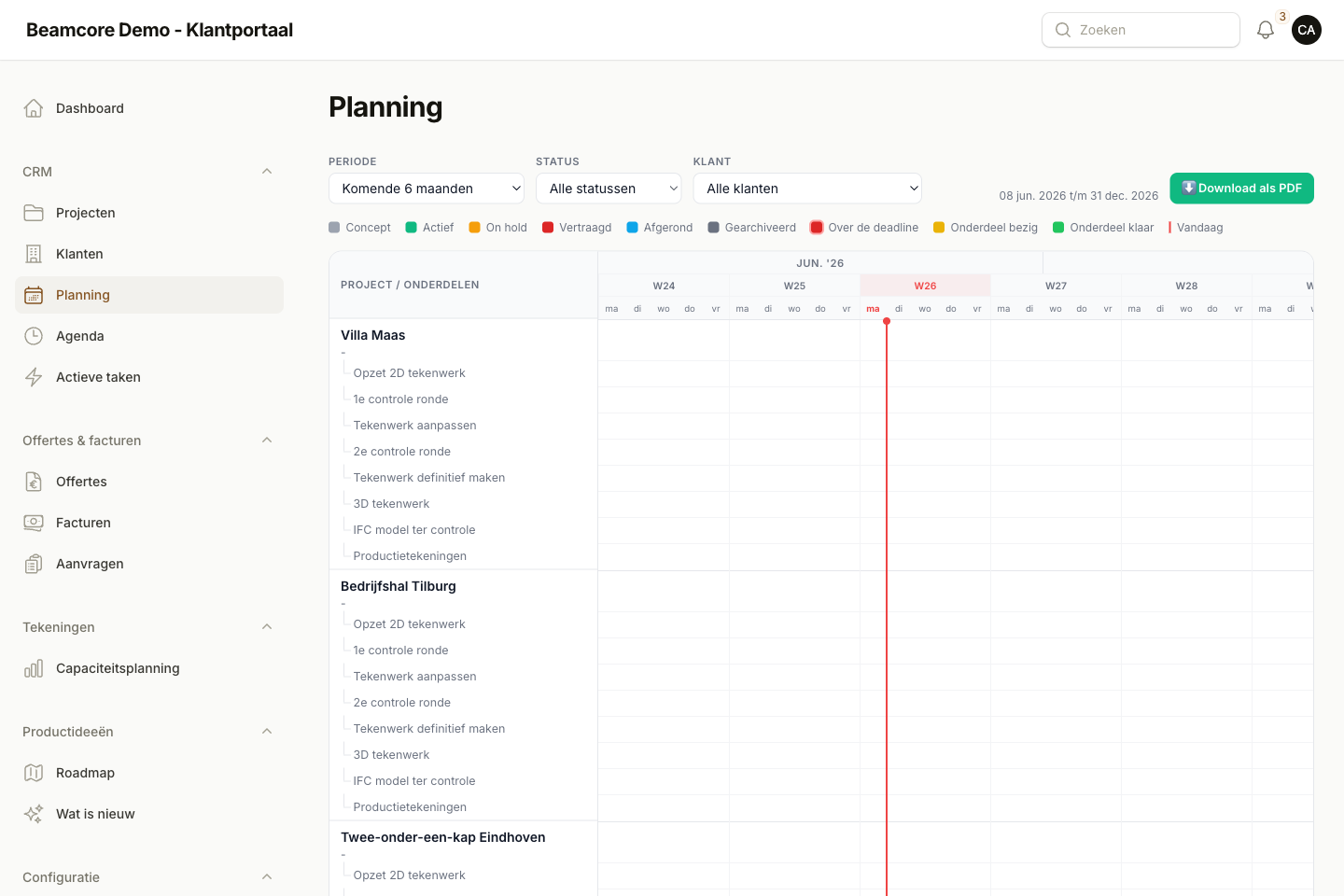
Create your own production tables, with hall, table type, maximum sizes, capacity per working day, working days and the people who work at them. The day planning shows the released elements without a spot on the left and the tables side by side on the right. Drag an element onto a table or plan several at once.
WEEK AND CAPACITY
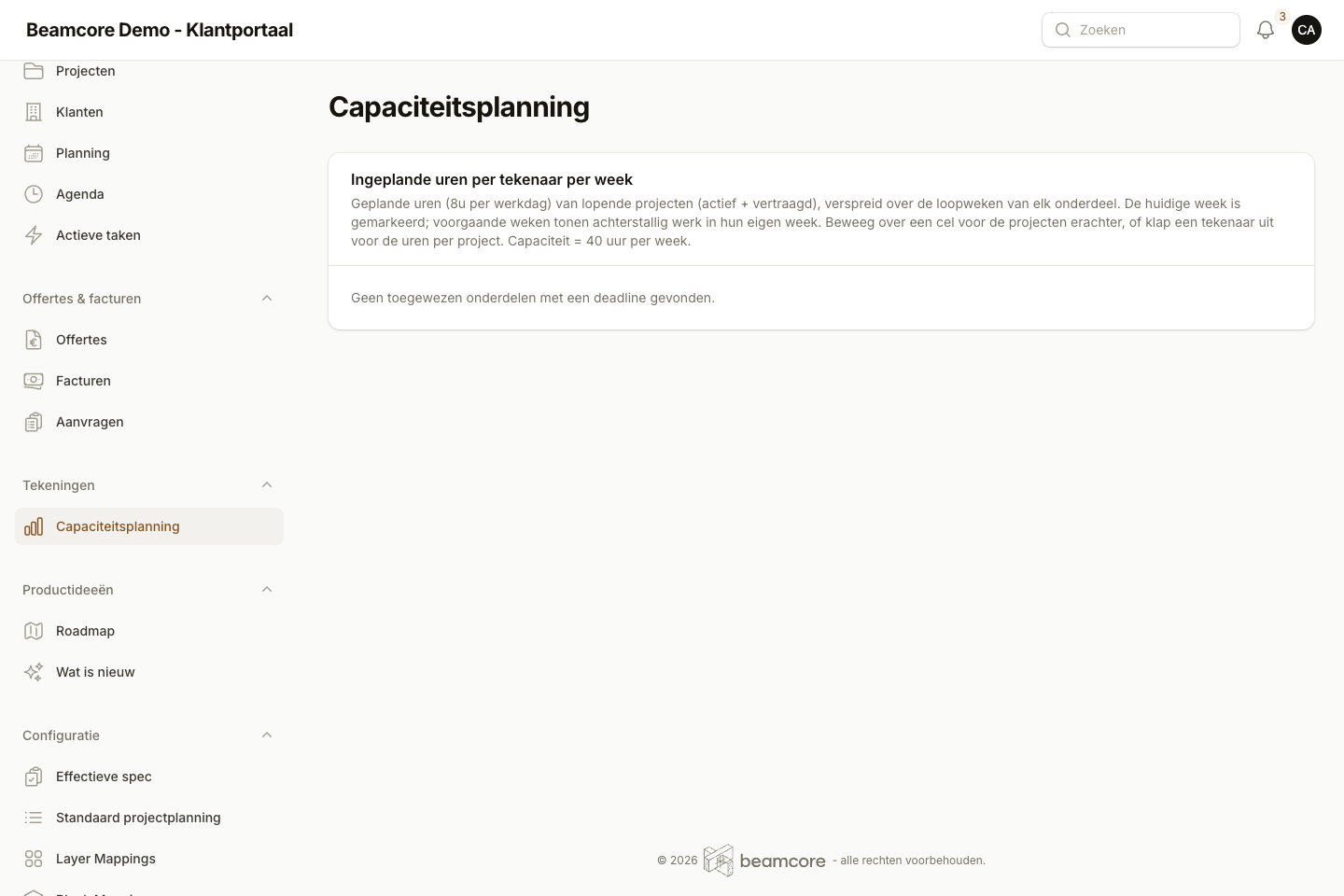
The week planning puts all tables and days side by side; a click on a day opens that day to move things around. Capacity & occupancy shows per table and per day how much time there is, how much is planned and how much has actually been worked, per week or per month.
PROGRESS ON THE SHOP FLOOR
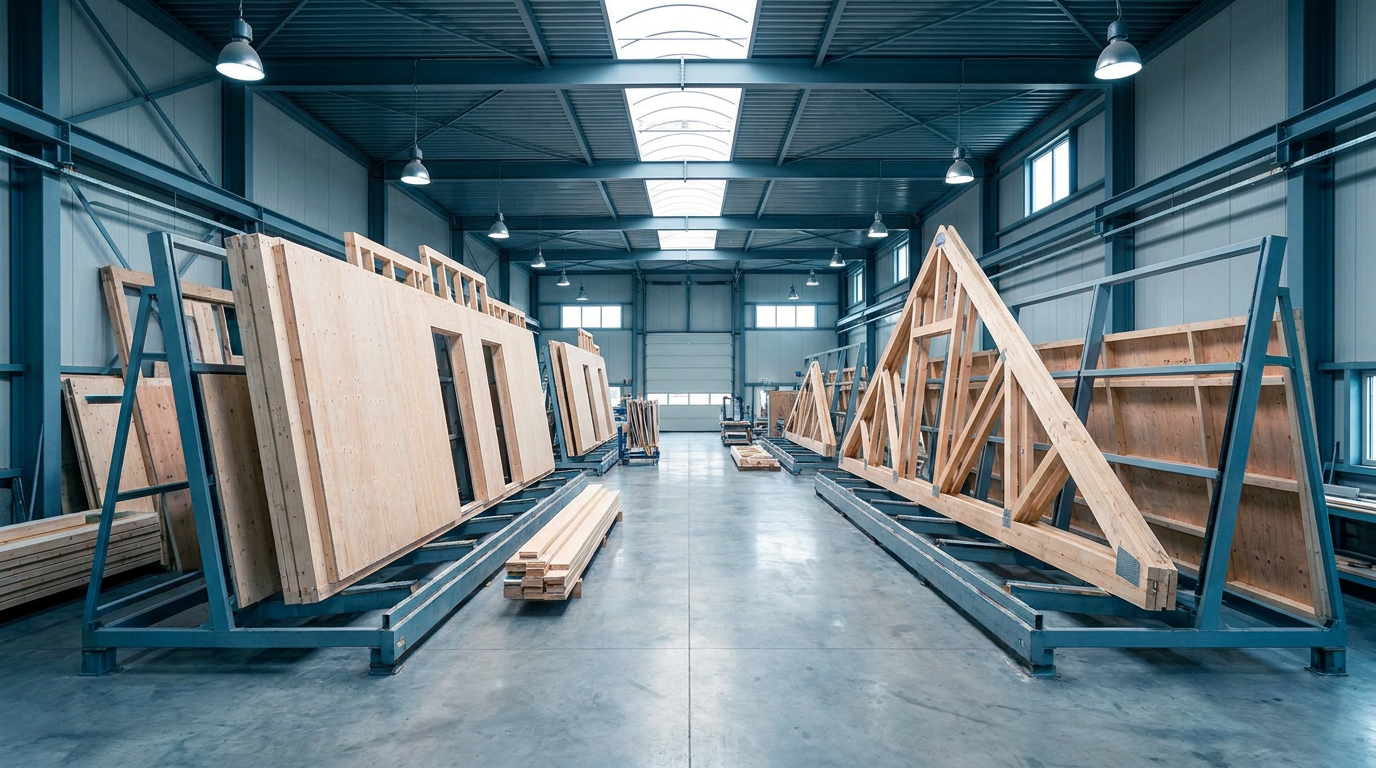
In Production progress everyone sees per table the elements of today, plus what is not yet finished from earlier. With big buttons you start, pause and finish an element; Beamcore keeps track of the time worked. The detail panel shows the production drawing per zone, the instructions from work preparation and the comments.
WHY IT WORKS
You plan elements that work preparation has released. Deviating is only possible with approval and a reason.
A new version of the model does not throw the planning away: an element keeps its table and day.
Starting, pausing and finishing gives the actual time per element.
With Wkb & quality assurance you see on the card which checks are still open.
Book a demo and see how elements go from the model onto the table and back as finished.